Manage workspaces
The Manage Workspaces section allows you to create, configure, and maintain workspaces.
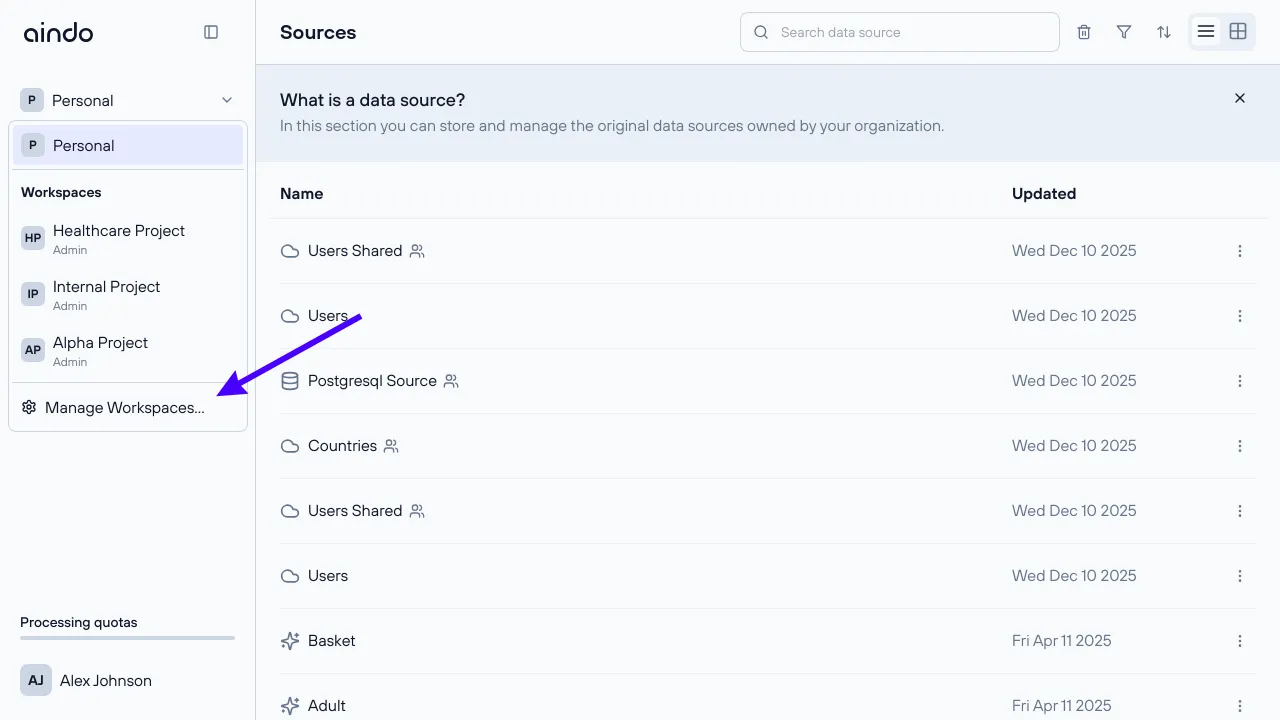
To access this area:
- Open the workspace dropdown in the left sidebar.
- Click ‘Manage Workspaces…’
Create a Workspace
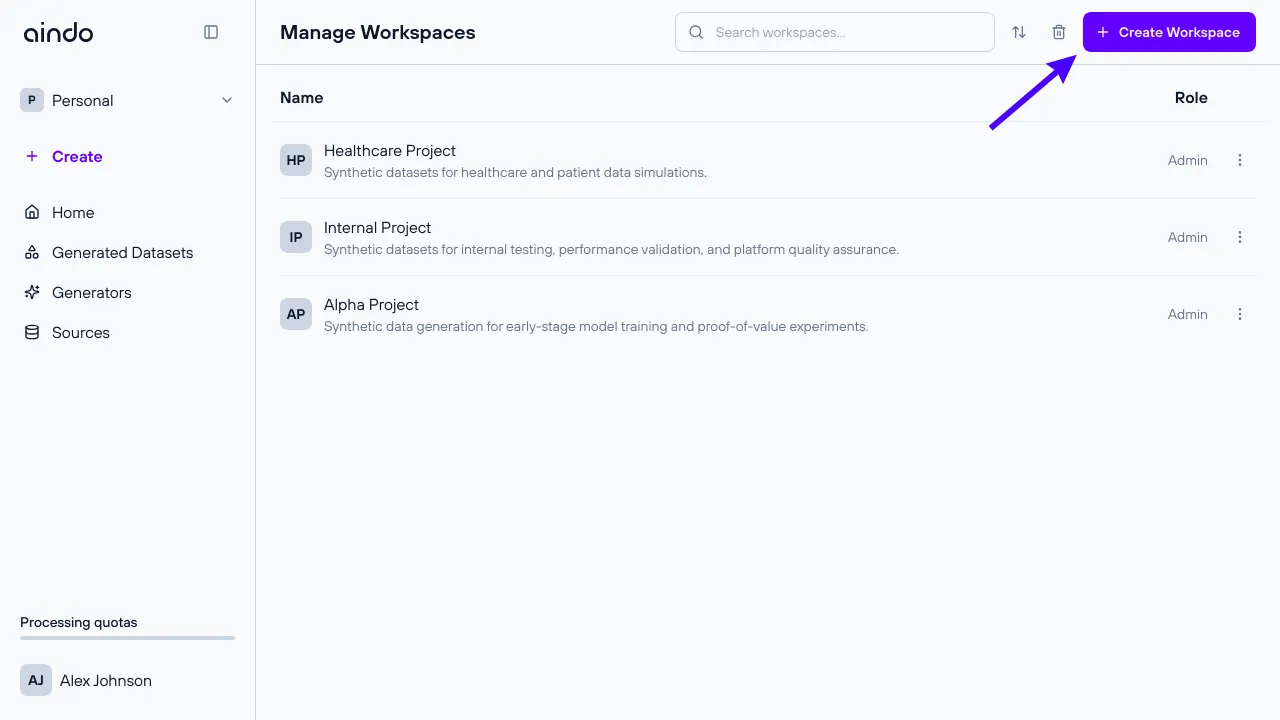
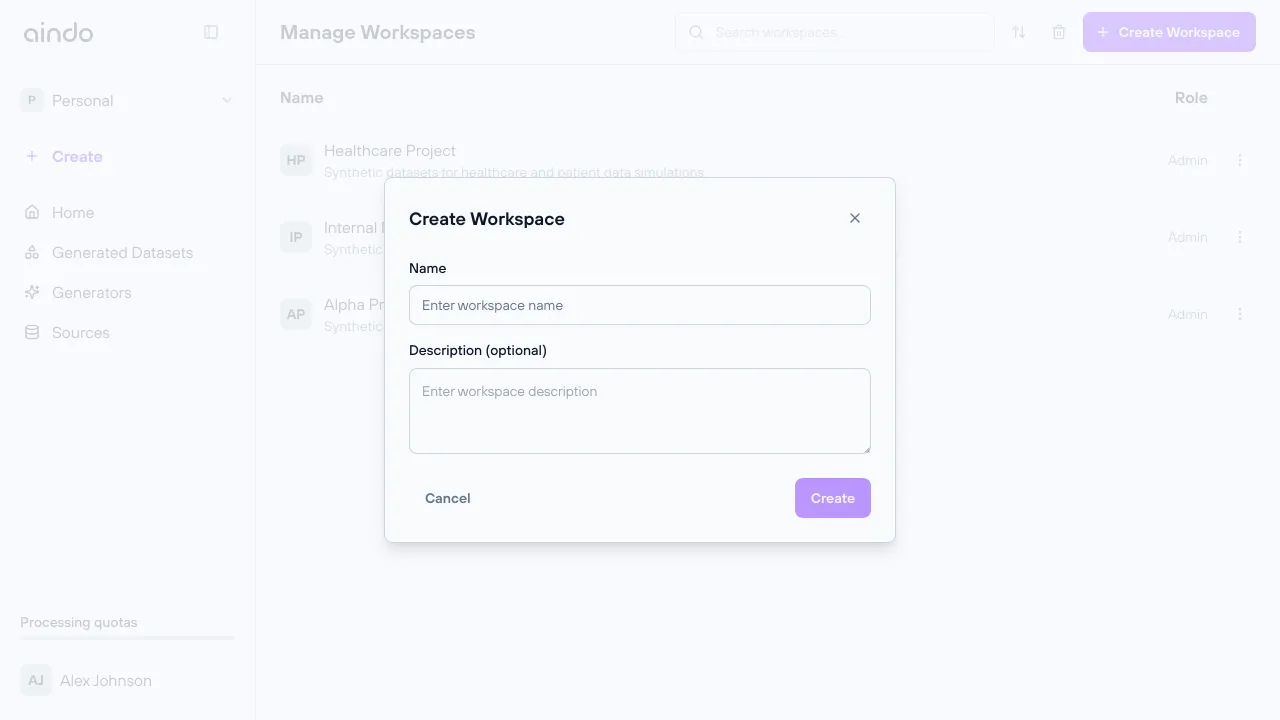
To create a new workspace:
- Access the Manage Workspaces page.
- Click the ’+ Create Workspace’ button.
- Enter:
- Name (required)
- Description (optional)
- Click Create to confirm.
The new workspace will appear in the workspace list and can be selected immediately.
Manage Members
Workspace members and their permissions are managed from the Manage Workspaces page.
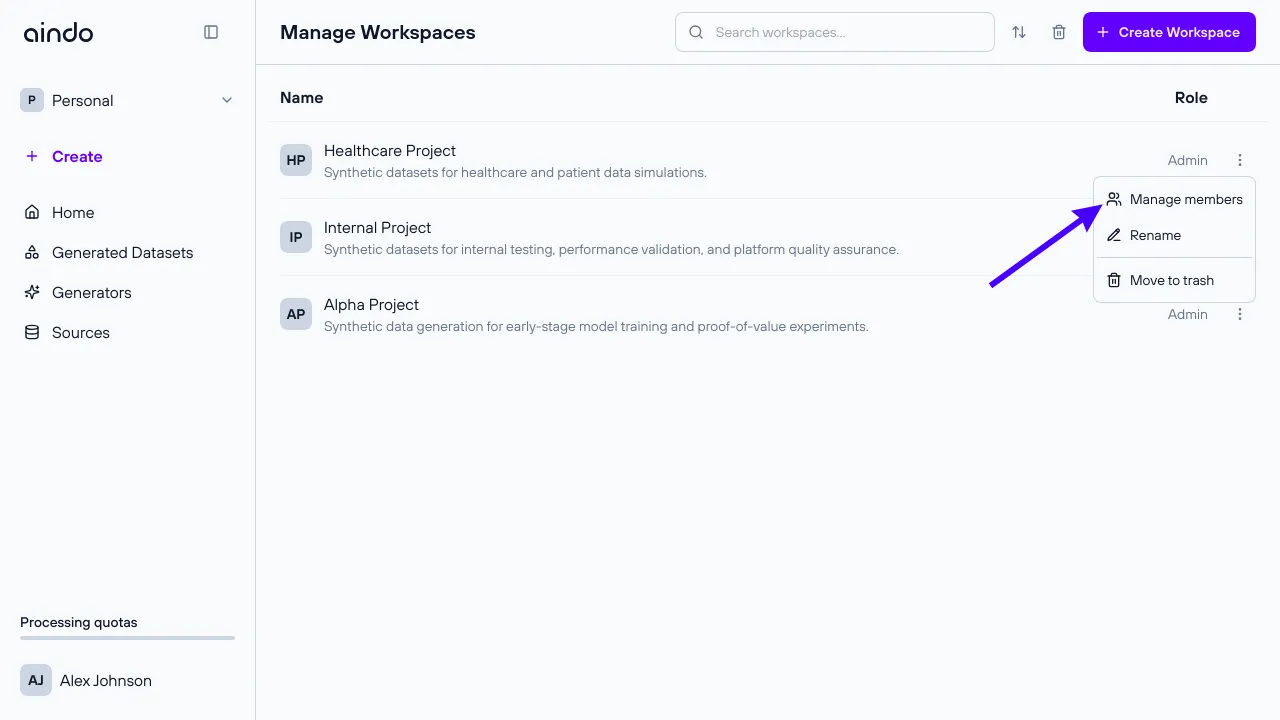
To manage members:
- Access the Manage Workspaces page.
- Click the vertical dots menu for the desired workspace.
- Select Manage Members.
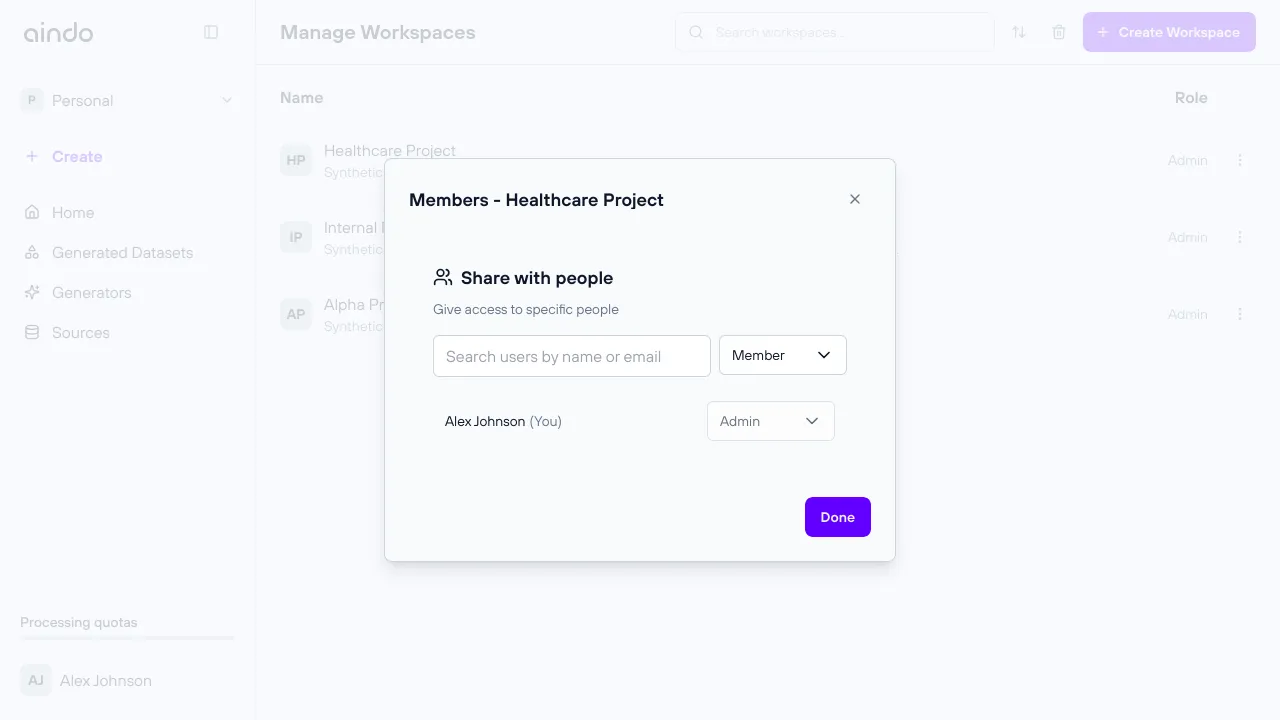
In the modal window:
- Search for users using the search field.
- Add users and assign a role.
Roles
Member
- Can create resources in the workspace.
- Has full access to resources in the workspace.
Admin
- Can do everything members can.
- Can also:
- edit workspace details and settings.
- add/remove members and change their roles.
- delete the workspace.
Move Resources Between Workspaces
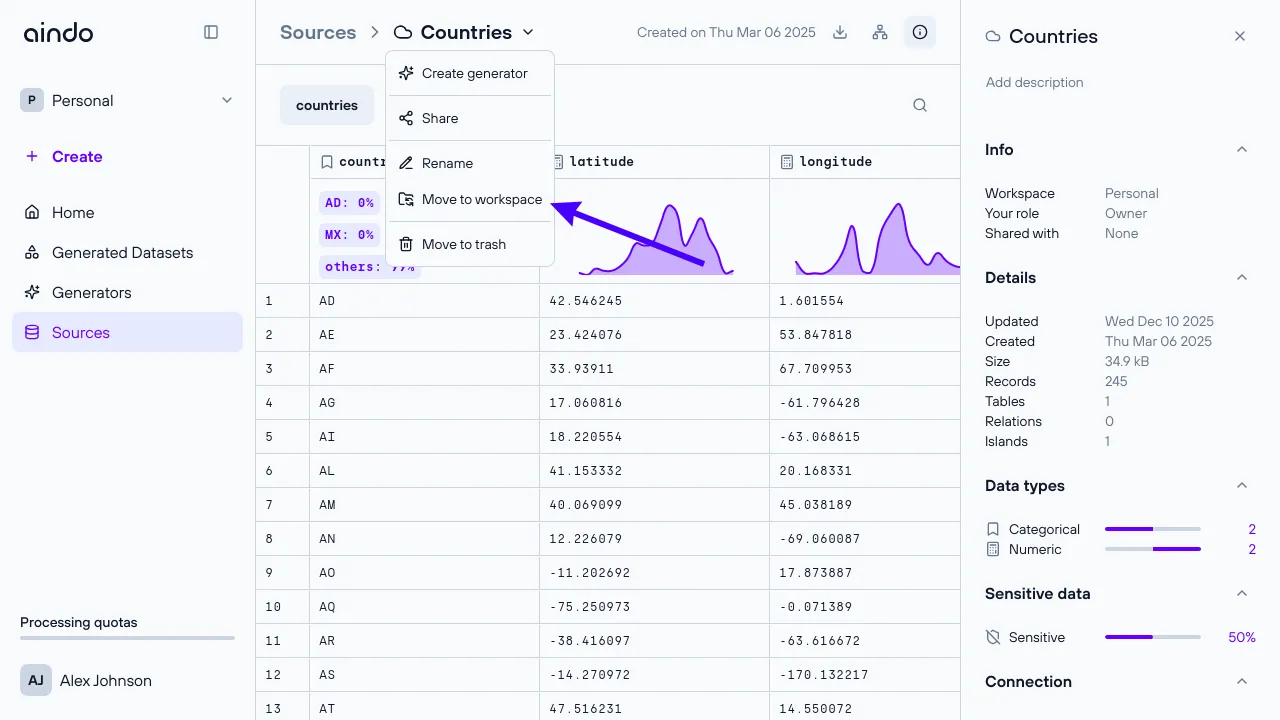
Resources such as Sources, Generators and Generated Datasets can be moved between workspaces. You must be the owner of the resource and a member of the target workspace to move resources to it.
Moving a resource does not automatically move connected resources. For example, moving a source will not move any generators created from it, and moving a generator will not move its source or generated datasets. Each resource must be moved individually.
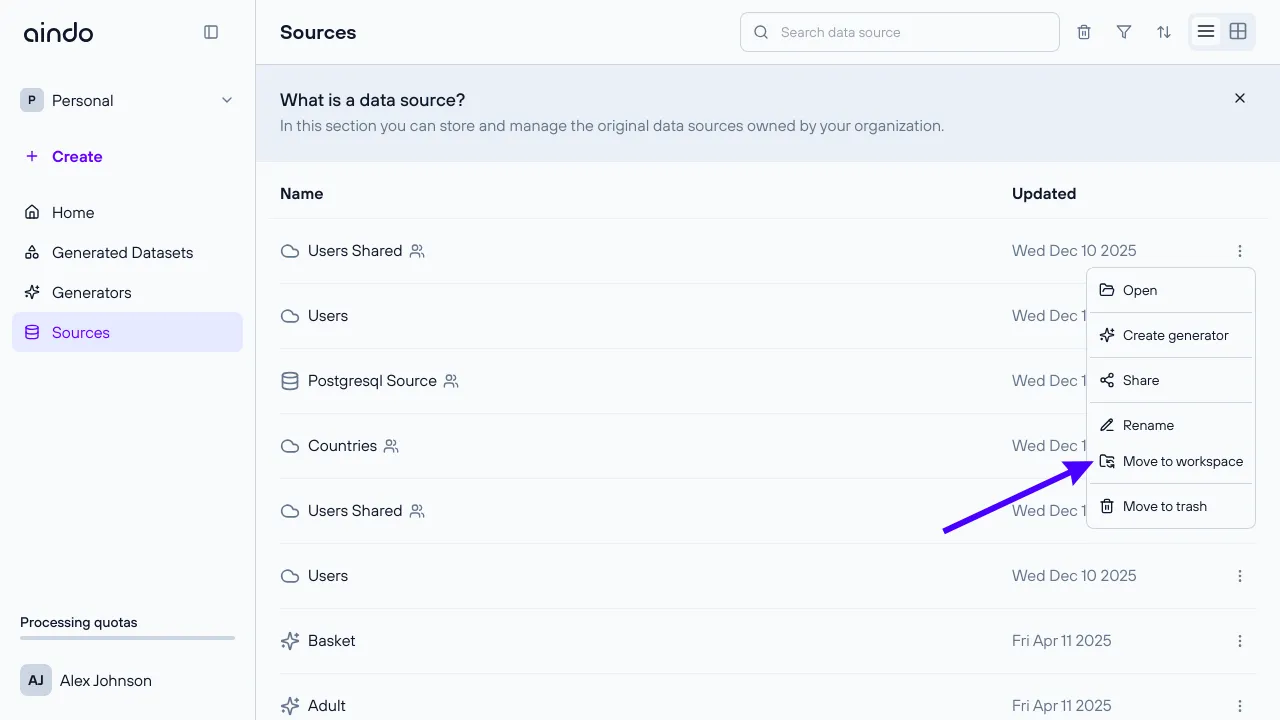
To move a resource:
- Navigate to the resource in either the resource list (e.g., Sources or Generators) or the resource detail page.
- Click the vertical dots menu next to the resource name.
- Select Move to workspace.
- Choose the target workspace from the list.
Moving from Personal to Workspace
When you move a resource from your Personal workspace to a Shared workspace:
- All existing private sharing settings are removed.
- The resource becomes visible to all members of the target workspace.
Moving from Workspace to Personal or Another Workspace
When you move a resource from a workspace to your Personal workspace or another workspace:
- The resource is no longer accessible to members of the original workspace.
- You keep full access to the resource.
- It is still accessible to users with whom it was shared directly.
- You can set up new or review existing sharing settings if needed.
Rename a Workspace
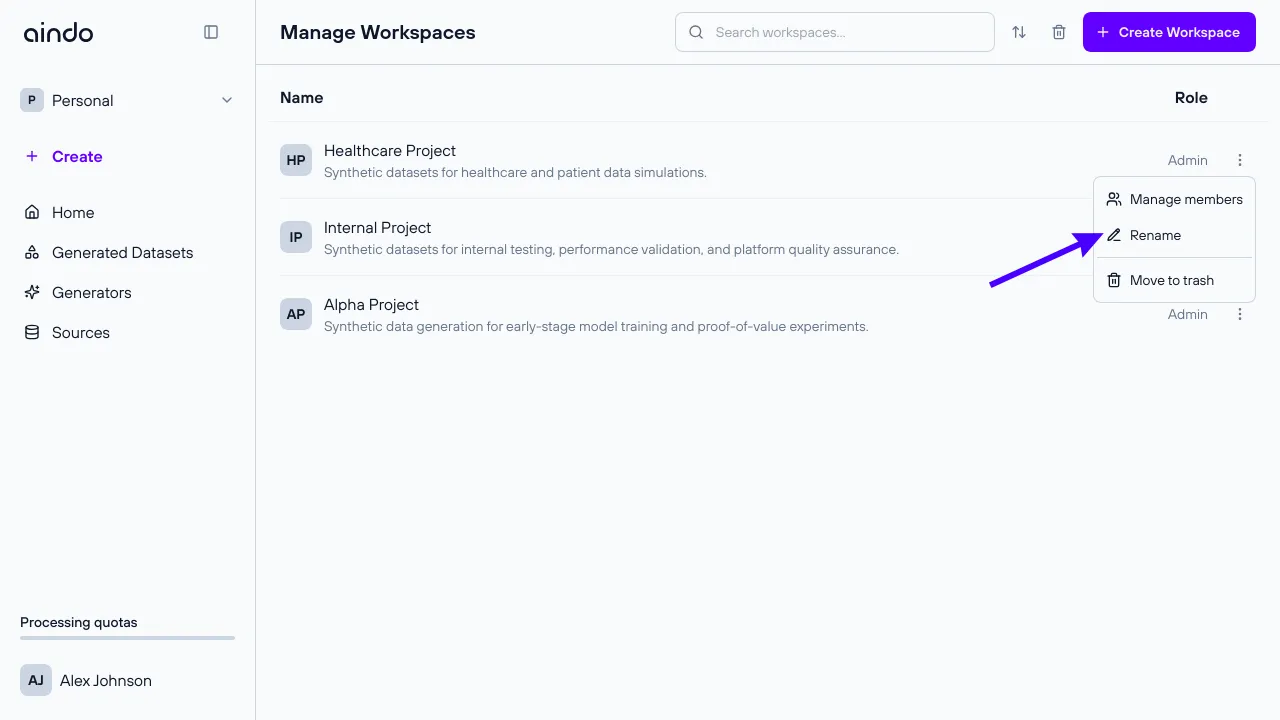
To rename a workspace:
- Access the Manage Workspaces page.
- Click the vertical dots menu for the workspace.
- Select Rename.
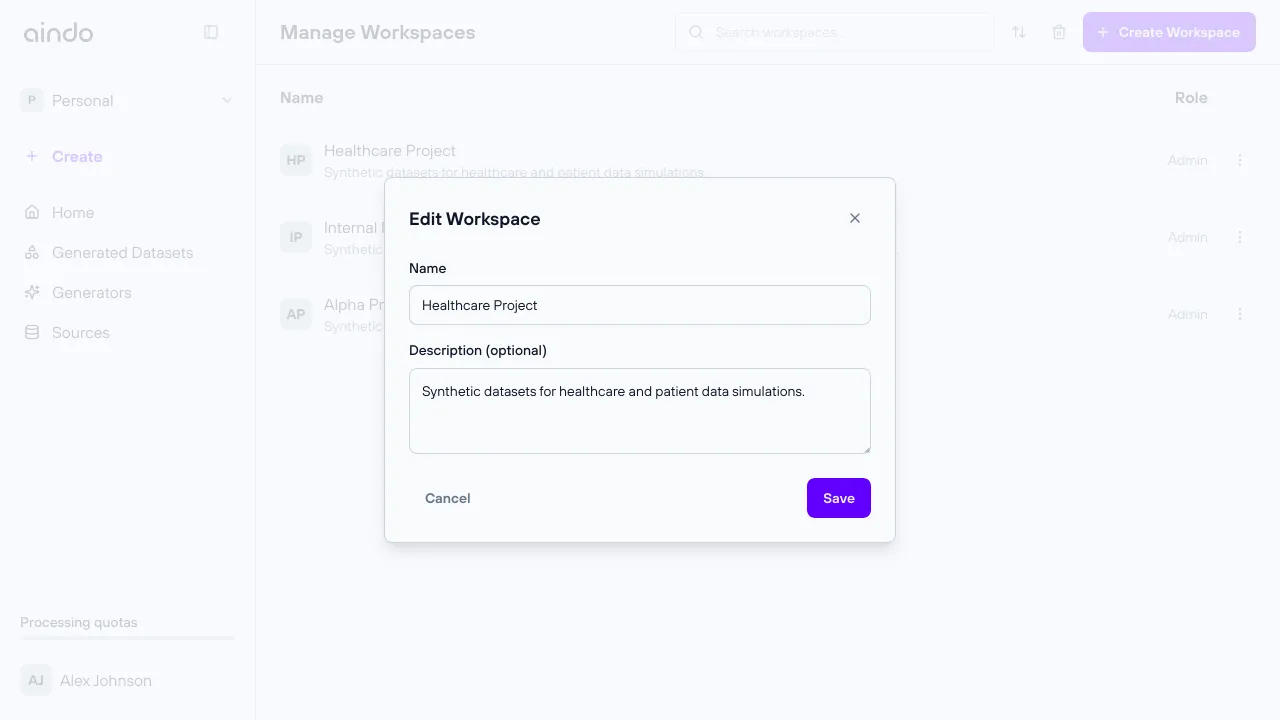
- Update the name and optionally the description.
- Click Save to confirm.
Delete and Restore a Workspace
To delete a workspace:
- Access the Manage Workspaces page.
- Click the vertical dots menu for the workspace.
- Select Move to trash.
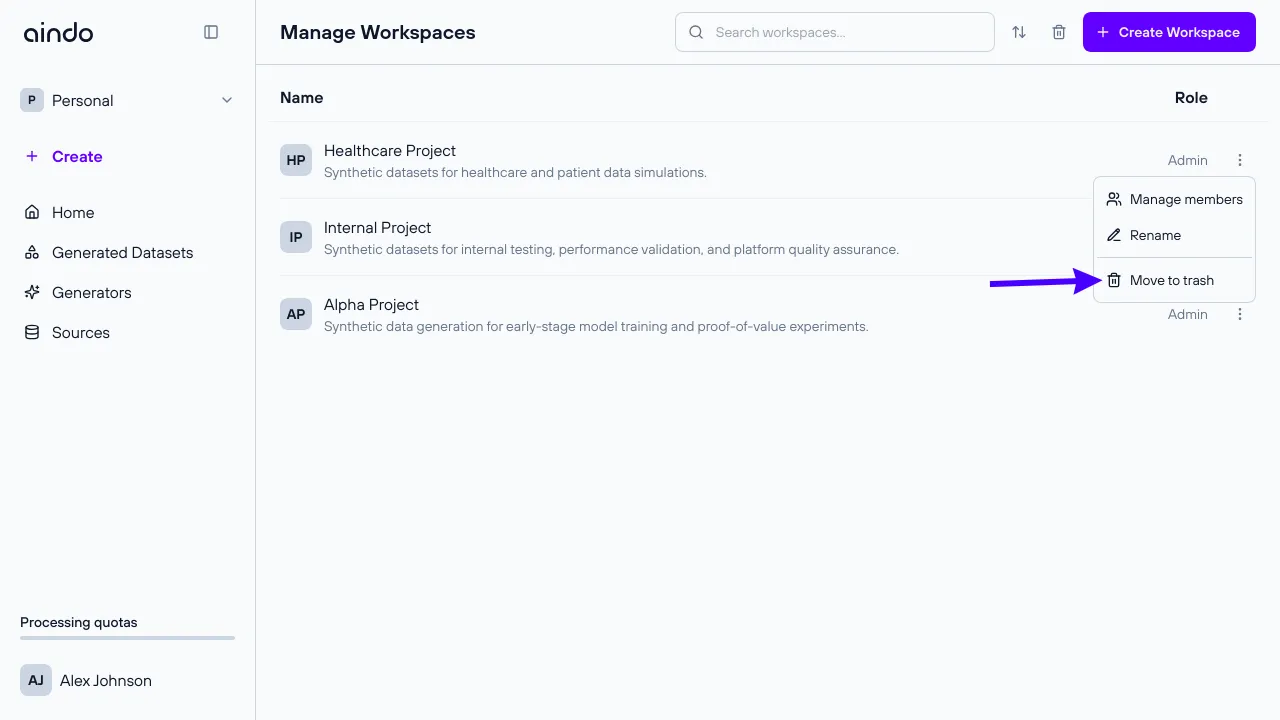
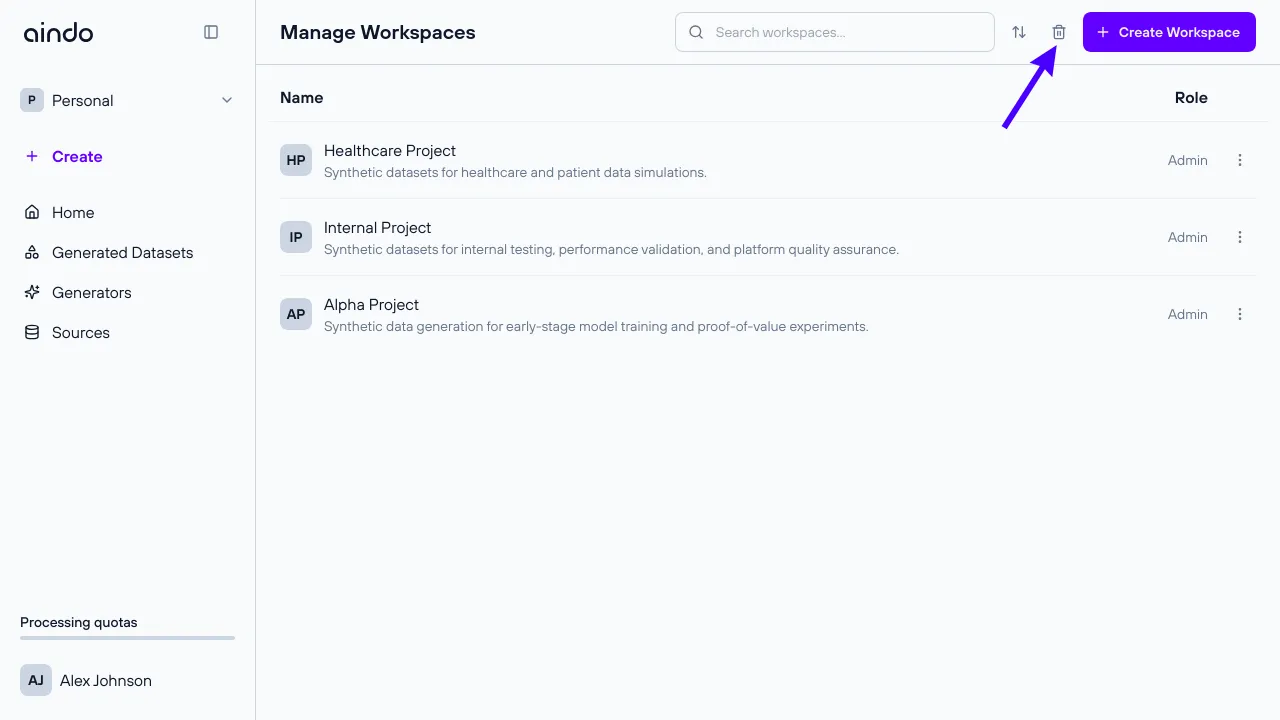
After deletion, the workspace is not permanently removed immediately. It moves to the Trash section where it can be restored.
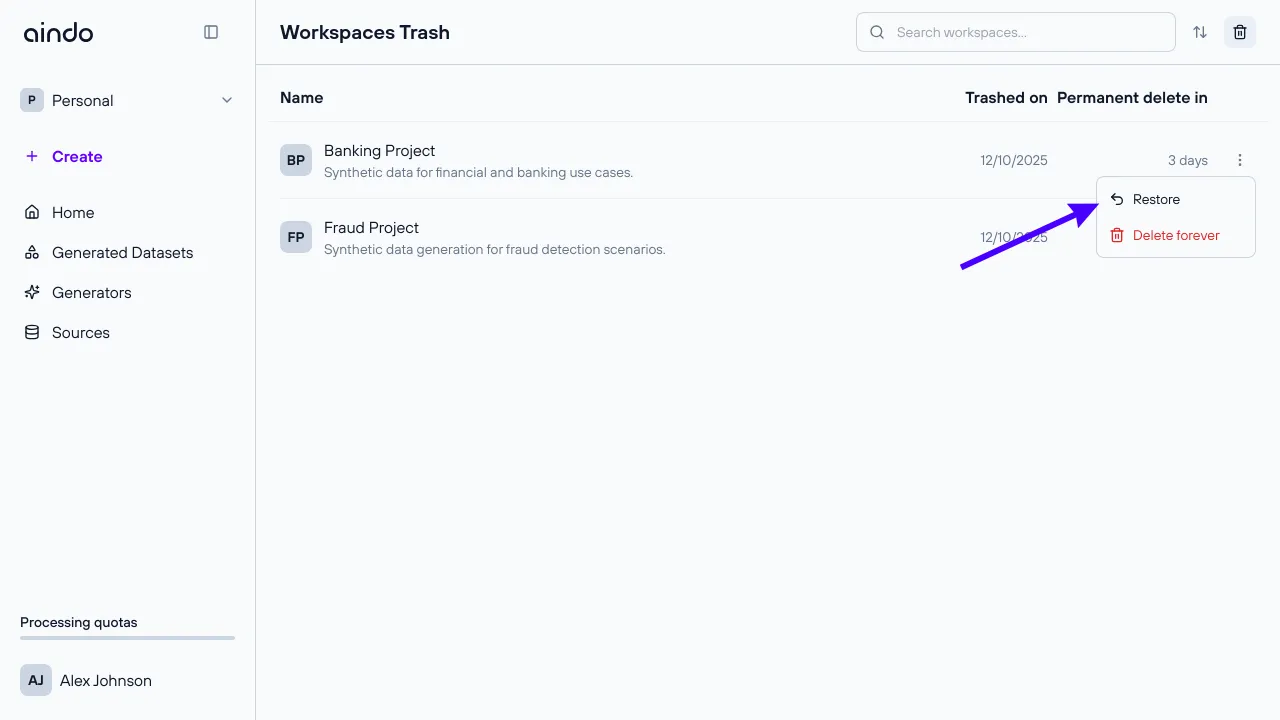
To restore a workspace:
- Access the Manage Workspaces page.
- Open the Trash section.
- Click the vertical dots menu for the workspace.
- Select Restore.