View details
Double-clicking a synthesis generator from the generators list page opens its view page. Besides the sections described in View a generator, the following sections are specific to synthesis generators.
Info panel
The top of the page displays the basic information about the generator: name, description, status, and source.
See Info Panel.
Generated datasets
Lists all the generated datasets produced by the generator.
See Generated datasets.
Model training
The ‘Model training’ section displays the generator’s training details, including the steps performed, their corresponding timings, and a graph showing how the validation loss evolved during training.
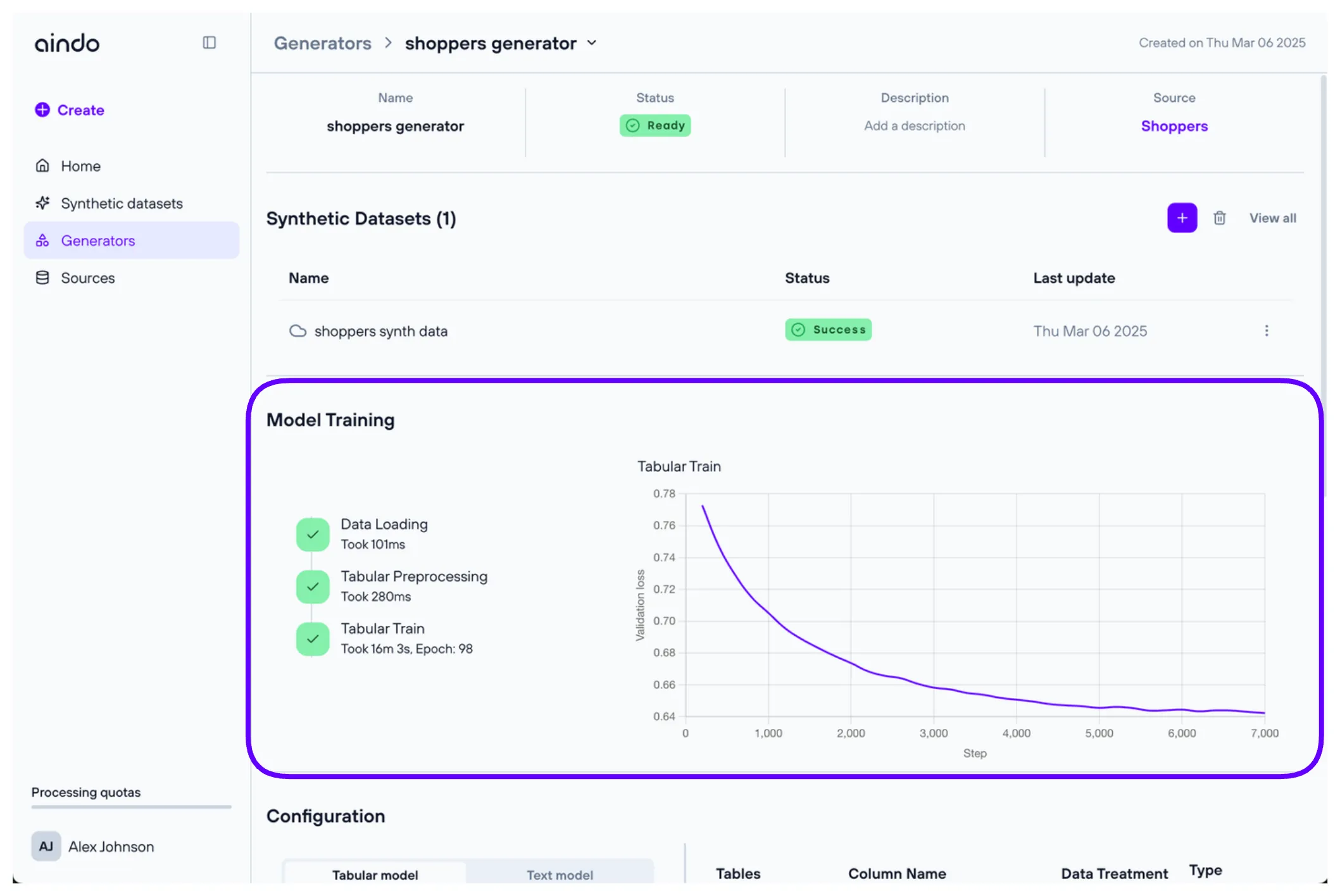
While the generator is running or pending, a ‘Cancel’ button below the timeline lets you abort training entirely. To gracefully stop a single training phase instead, see Stop Training.
Differential privacy budget graph
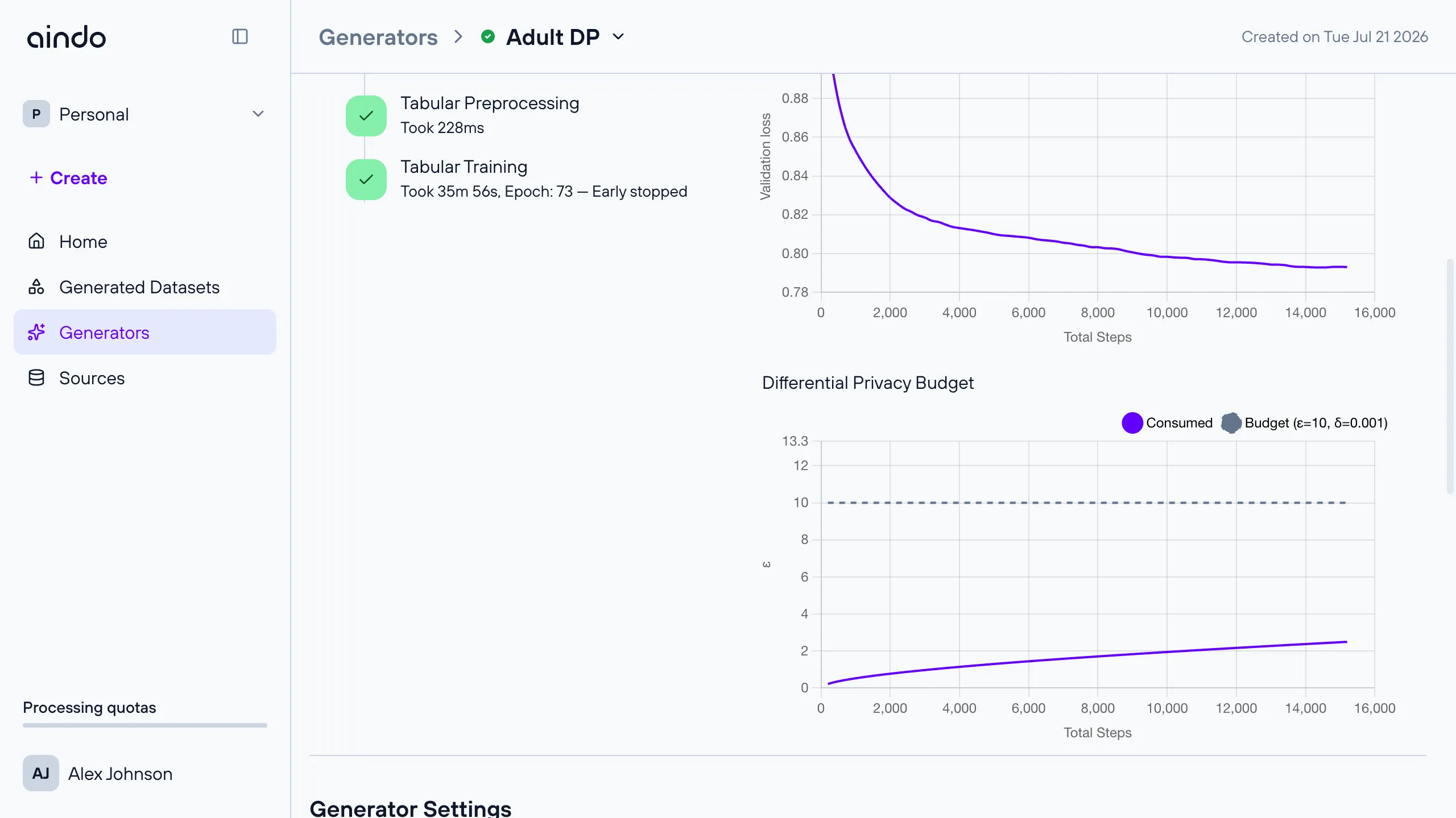
If differential privacy is enabled for the generator, an additional ‘Differential Privacy Budget’ graph is shown alongside the training-loss graphs. It plots the privacy budget (ε) consumed by training against the total configured budget (ε, δ) over the number of steps.
Configuration
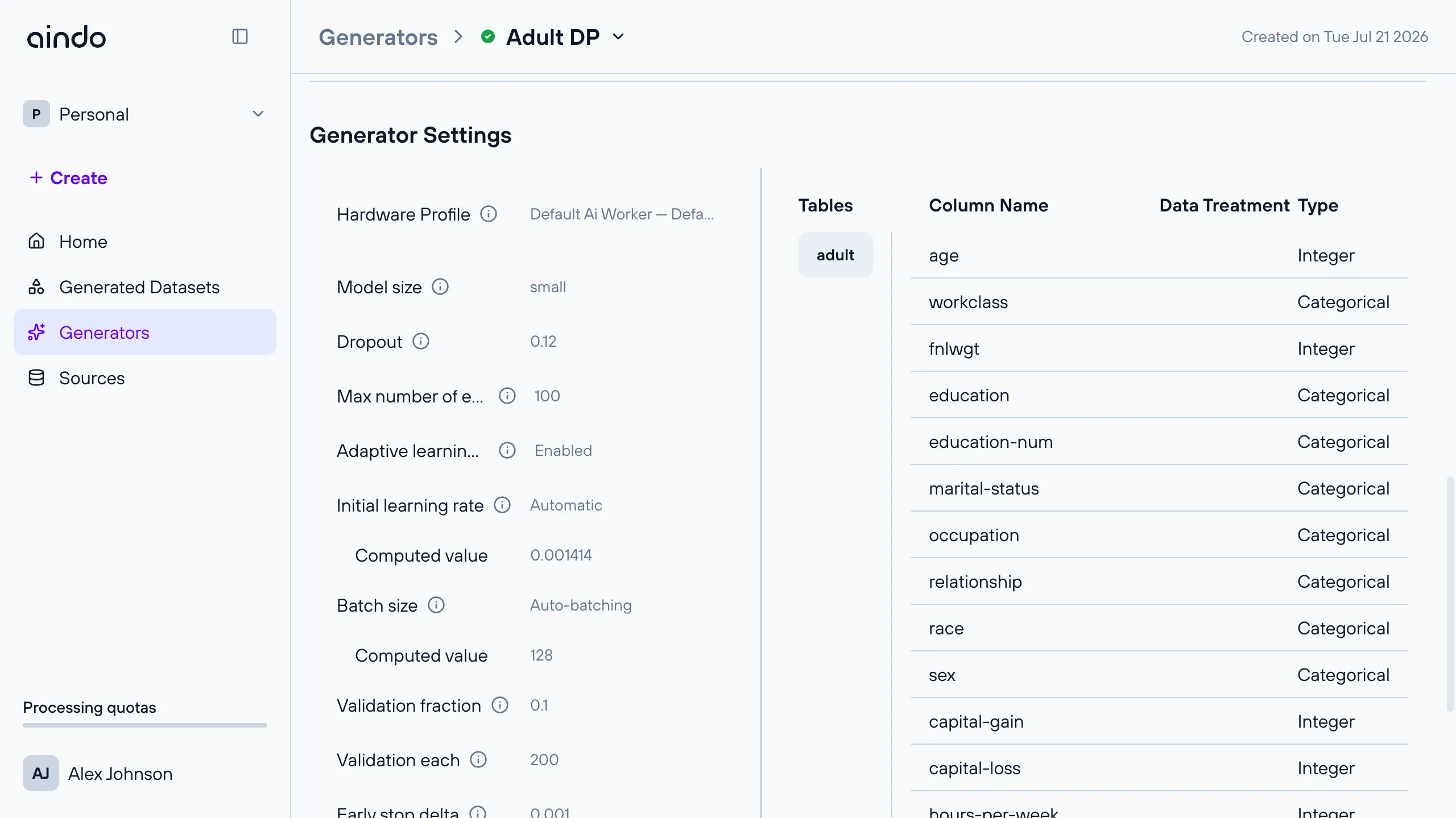
The ‘Configuration’ section (labeled ‘Generator Settings’ in the app) shows the settings used to configure the generator’s training, alongside the tables and columns used.
See Configuration for the tables/columns part of this section.
Hardware Profile
If your deployment has hardware profiles configured, the top of the ‘Configuration’ section shows the
Hardware Profile used for this training run. This is the Hardware Profile
chosen when the generator was created, shown here as a read-only value.
Configured vs. computed values
Some training parameters, namely Learning rate (or Initial learning rate) and Batch size, can be left on their
automatic setting (Automatic / Auto-batching) instead of a fixed value. When this is the case and the
corresponding training stage has progressed far enough to resolve a value, an indented Computed value row is
shown below the setting, displaying the actual value automatically determined for that training run. For the text
model, since a generator can train on multiple tables, each computed value row is labeled with the corresponding
table name, e.g. Computed value (my_table).